Recover a Failed SD Card
The software lives on a microSD card inside your Wireless Toolbox. In the rare case that the card becomes corrupted or is lost, you can make a replacement yourself in about twenty minutes. The new card starts your Wireless Toolbox, then downloads and installs the current software over your own Wi-Fi.
What you need
- A microSD card, 16 GB or larger. Everything on it will be erased.
- A computer with a card slot or a USB card reader, running Windows, macOS, or Linux.
- Your phone, and the name and password of your own Wi-Fi network. Your Wireless Toolbox needs the internet once, to download its software.
Make the card
1. Download the recovery image
Open the Wireless Toolbox recovery image download in your browser. It downloads one file, wireless-toolbox.img.xz, about 780 MB. It is free.
2. Install Raspberry Pi Imager
Imager is the free tool that writes the image to the card. Get it from raspberrypi.com/software.
- Windows: Choose Download for Windows and run the installer.
- macOS: Choose Download for macOS, open the
.dmg, and drag Raspberry Pi Imager into Applications. - Linux: On Ubuntu, Debian, or Raspberry Pi OS, run
sudo apt install rpi-imager. For other distributions, use the AppImage from the same page.
3. Write the image to the card
Put the microSD card in your computer and open Raspberry Pi Imager.
- Device: Raspberry Pi 4.
- Operating system: Scroll to the bottom, choose Use custom, and pick
wireless-toolbox.img.xz. - Storage: Your microSD card. Check this twice; everything on it is erased.
Click Next.
If Imager offers to apply customisation settings, choose No. Those settings are for building your own Raspberry Pi and will stop your Wireless Toolbox from working.
Confirm, and wait a few minutes while Imager writes and verifies the card. When Imager says it is finished, it has already ejected the card.
- Windows: If Windows says the card needs formatting, click Cancel. That is normal for this card.
- macOS: If macOS says the disk is not readable, click Ignore. That is normal for this card.
Install the software
Continue on your phone, regardless of which computer you used to make the card.
4. Start your Wireless Toolbox from the new card
Unplug the USB power cable from the Wireless Toolbox, put the new card in, and plug the power cable back in. Give it about one minute.
5. Join the Toolbox network
On your phone, open Wi-Fi settings and join the Toolbox network. It has no password.
A page headed Update usually opens by itself. If it does not, open your browser and go to http://toolbox.local.
On an iPhone, always use http://toolbox.local. Some older Android phones need http://10.42.0.1 instead.

6. Connect it to your Wi-Fi and start the download
- Tap Begin Update.
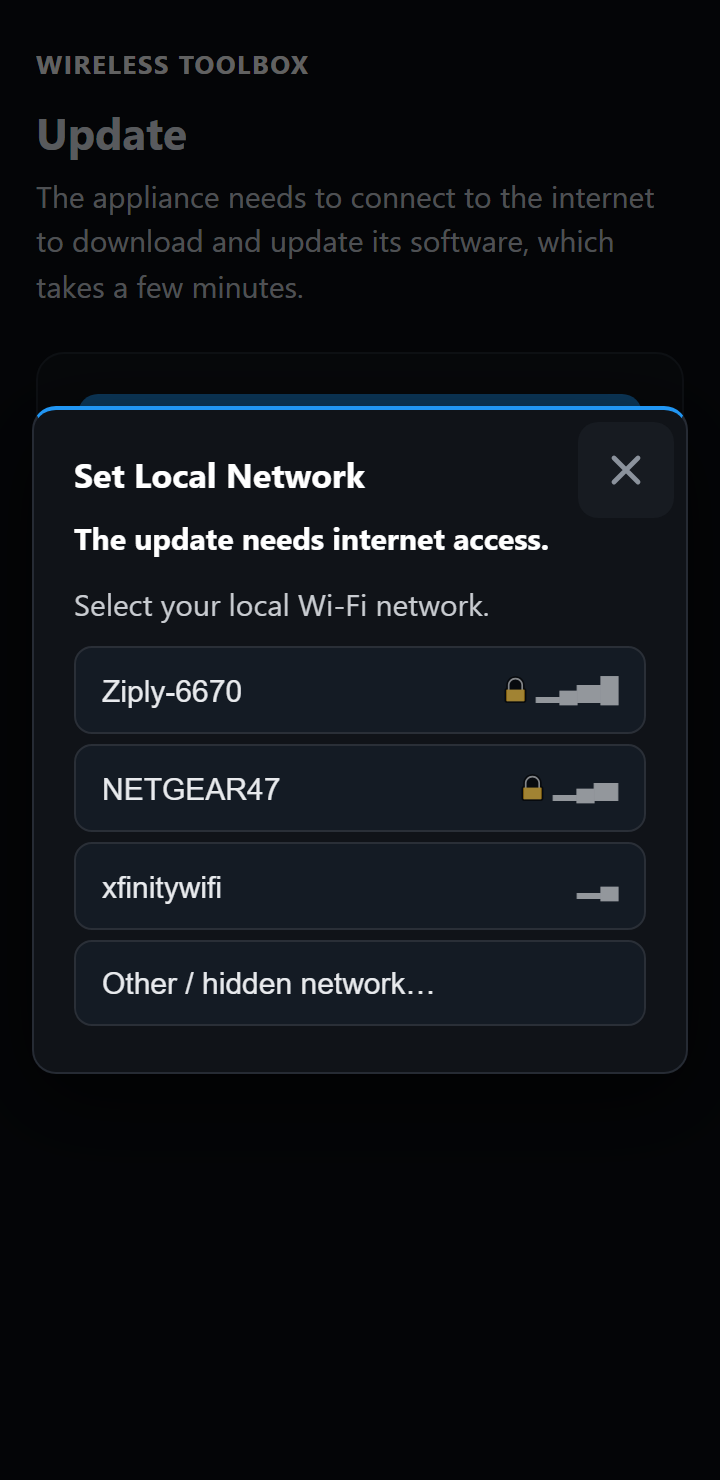
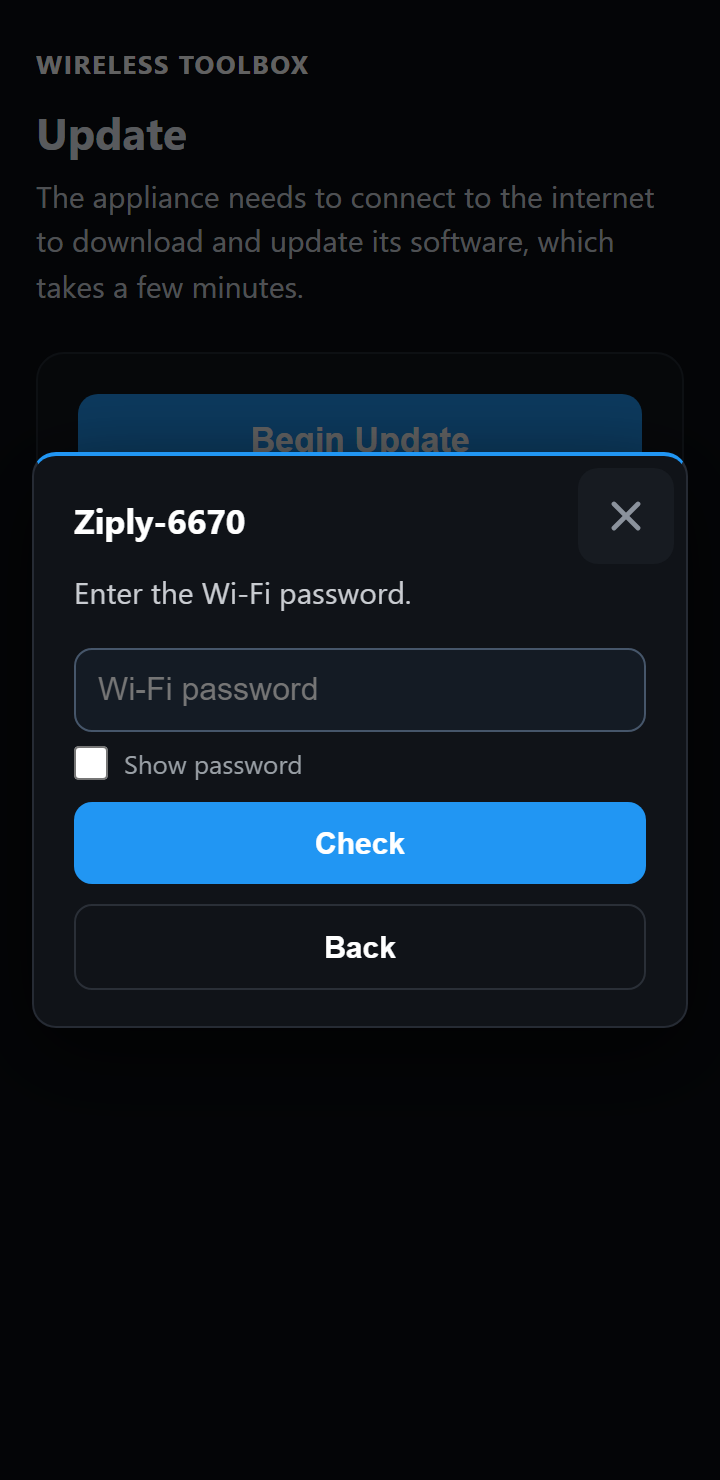
- Under Connect to Wi-Fi, choose your own Wi-Fi network.
- Enter its password and tap Connect and download.
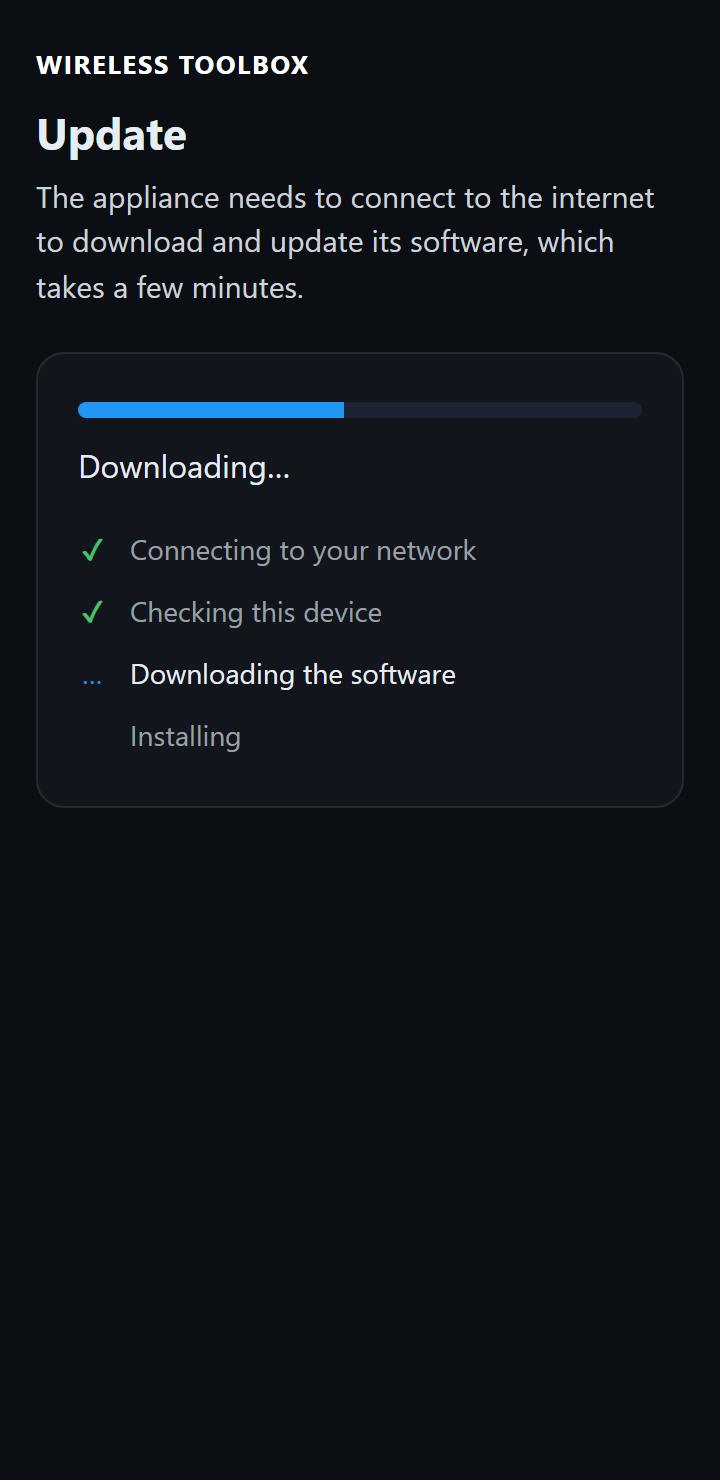
Your phone stays on the Toolbox network the whole time. The page shows each stage as it happens:
- Connecting to your Wi-Fi
- Checking this device
- Downloading the software
- Installing
This takes a few minutes. Keep the Wireless Toolbox powered.
7. Allow the Wireless Toolbox appliance to reboot
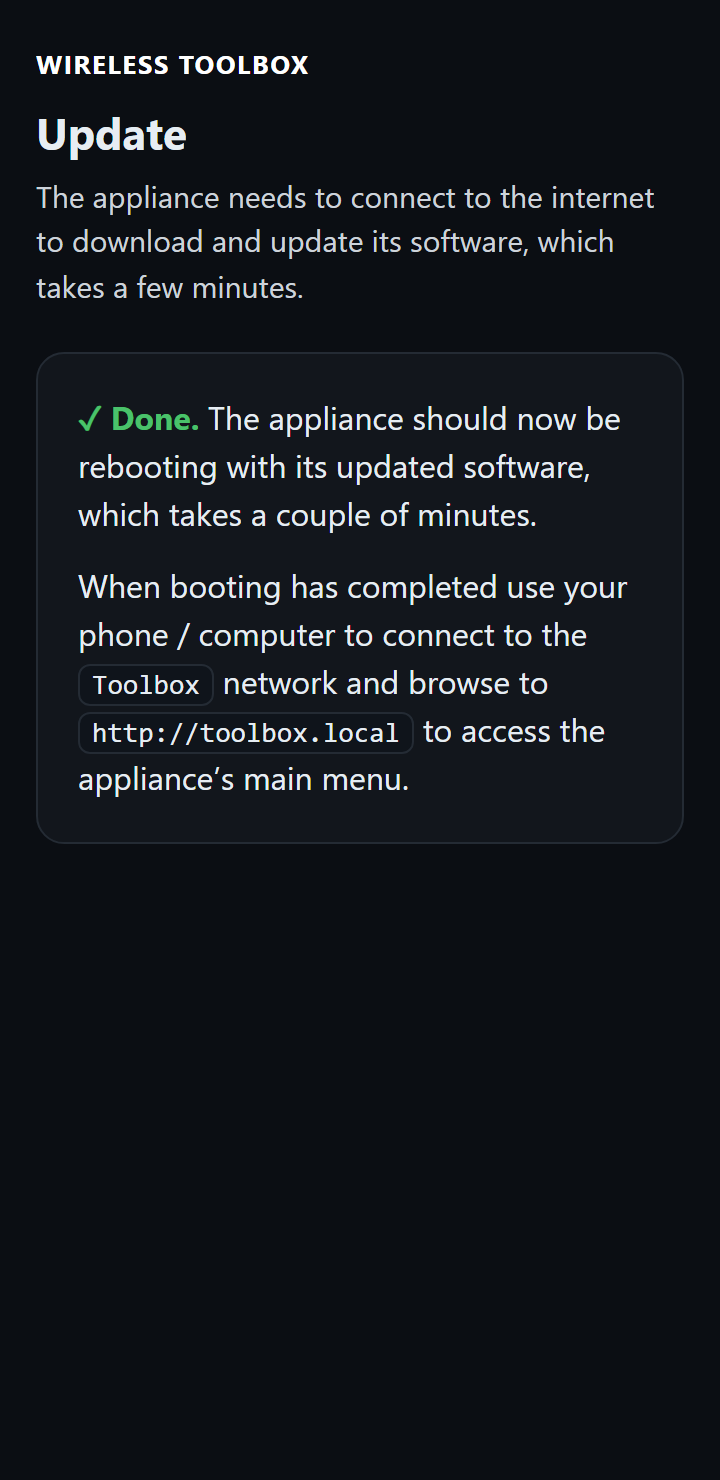
After downloading the latest software update onto the SD card, the appliance needs to reboot. This typically takes around 2 minutes. You’ll know when rebooting has completed either when the Toolbox SSID reappears as an available Wi-Fi network in your phone’s or PC’s Wi-Fi settings, or when the green LED on the side of the appliance’s case has stopped flickering.
8. Open the main menu
After the appliance has finished booting, it is necessary to rejoin the Toolbox network using your phone’s or PC’s Wi-Fi settings, and then navigate to http://toolbox.local.
Accept the licence agreement when it appears, and you are at the main menu. Your Wireless Toolbox confirms it is genuine automatically; there is no licence key or account.
Your Wi-Fi password is used only for the download and is not stored on the device.